
Run the demo project
The demo project contains every example page and the project configuration. There are three ways to run it: import the demo project from the DCloud plugin market, clone the demo source, or add a licensed library to your own project.
The first two are for trying things out and require no purchase; a purchase binds the license to apps under your own DCloud account, so only buy when you plan to use it long-term in your own project (Option 3).
- GitHub: github.com/anyup/hello-uview-pro-x
- Gitee: gitee.com/anyup/hello-uview-pro-x
- Live demo: h5-x.uviewpro.cn
Prerequisites
| Item | Requirement |
|---|---|
| Editor | HBuilderX (stable, supports uni-app x) |
| Optional | WeChat DevTools (Mini Program), an Android device or emulator (App) |
Option 1: Import the demo from the plugin market (recommended, no purchase)
The demo project is published on the DCloud plugin market, so it runs right after import with no extra configuration and no license purchase.
- Open DCloud Plugin Market · uView Pro X demo project.
- Click "Download and import to HBuilderX" and choose an empty directory or an existing project directory as the import location.
- Open the imported project and pick a target platform from the "Run" menu.
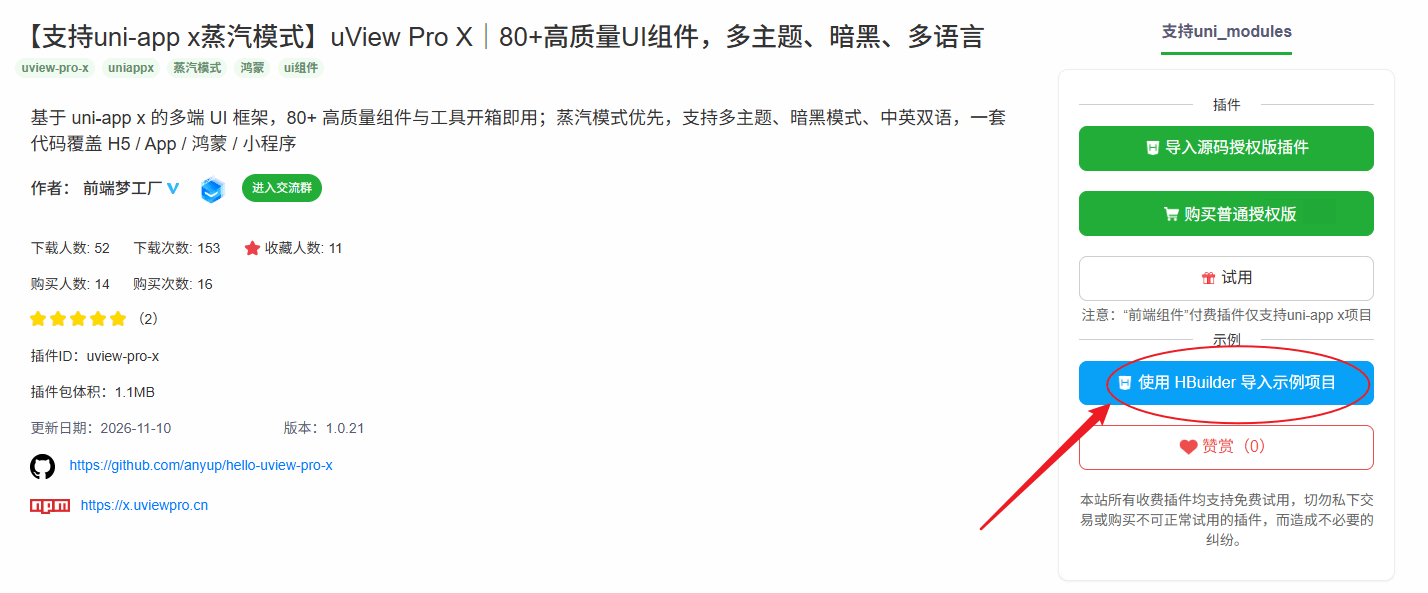
This is the fastest way to try every example and to compare the docs against the real rendering.
Option 2: Clone the demo source (trial available, no purchase)
Besides the option above, you can also clone the demo source and run it locally:
git clone https://github.com/anyup/hello-uview-pro-x.git
# or
git clone https://gitee.com/anyup/hello-uview-pro-x.git
Open the project root in HBuilderX via "File → Import → Import from local directory".
Step 1: Get your own AppID
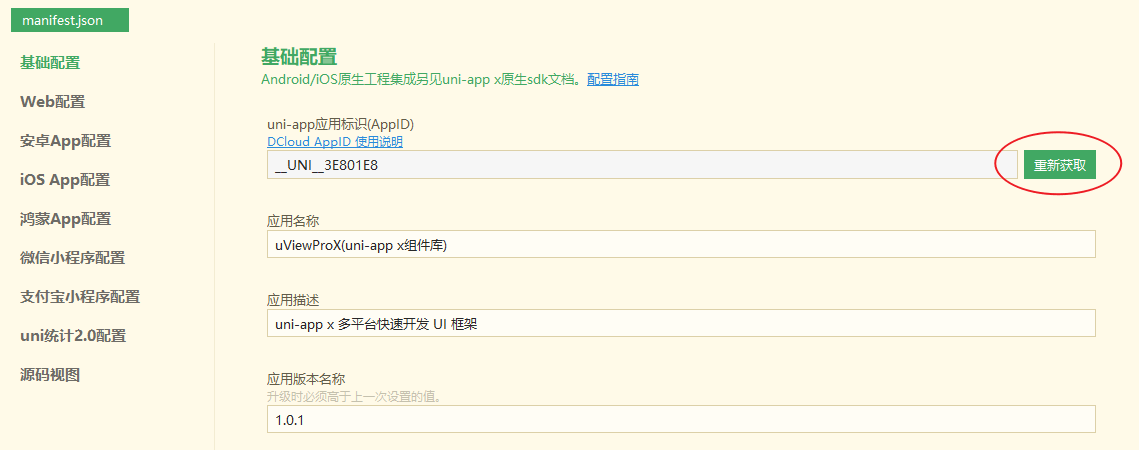
The cloned project keeps the demo author's AppID in manifest.json, which may report the AppID as unavailable or fail to bind to your account. Open manifest.json → Basic configuration and click "Regenerate" to create an AppID for your own account:
Step 2: Bind the project for a trial
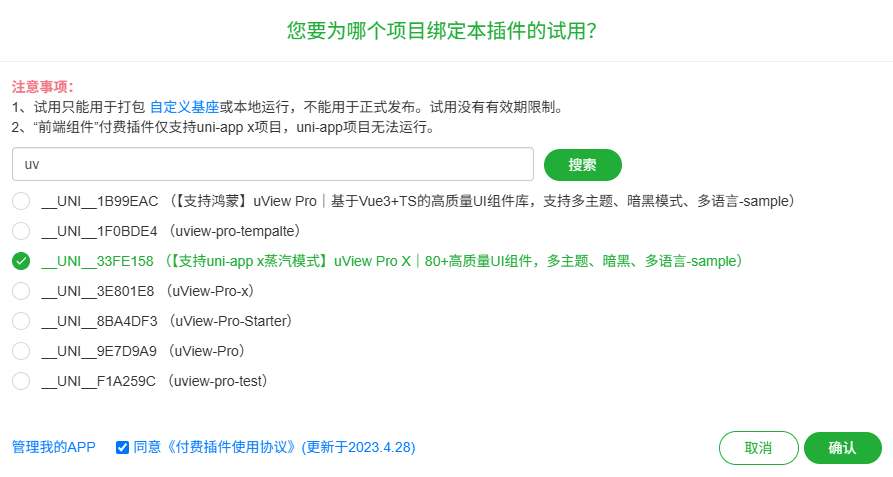
Open DCloud Plugin Market · uView Pro X, click "Trial" and select the imported demo project to bind the plugin to it for a trial. No license purchase is needed just to run the demo:
Step 3: Import the library
The demo only lacks the library itself: uni_modules has no uview-pro-x folder, while the rest of the configuration (the easycom rule in pages.json, the registration in main.ts, the $u-* variable block in uni.scss) is already in place. On the plugin page, click "Continue importing to HBuilderX" and select the imported demo project; once the plugin lands in uni_modules/uview-pro-x, the project runs directly.
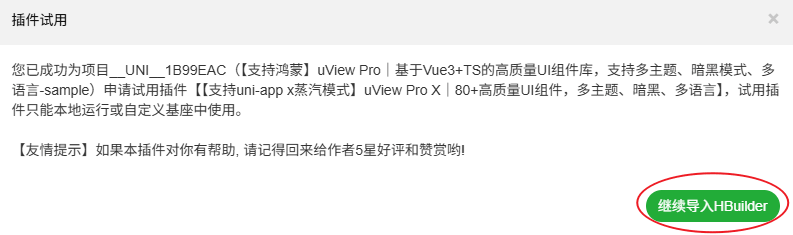
Compared with Option 1, Option 2 only lacks the encrypted uview-pro-x library; everything else is identical, so no further setup is required.
Option 3: Add a licensed library to your own project (source-code edition recommended)
To use the components long-term in your own uni-app x project, buy a license. A purchase binds the license to apps under your DCloud account. The two licenses compare as follows:
| Edition | Code protection | License | Transaction |
|---|---|---|---|
| Normal license | Part of the source is hidden | Usage rights for this project and/or service space, plus secondary development rights on the unencrypted part | Self-service order, usable immediately; buyer identity stays private from the seller |
| Source-code license | All source code visible | Usage rights for this project and/or service space, full secondary development rights, and security verifiable through source review | Digitally signed tripartite agreement, real-name transaction; the author may decline, and the buyer pays after signing to receive the source |
Step 1: Import the library
After purchasing on the plugin market, click "Download and import to HBuilderX" and select your own project.
Step 2: Register the library
Register the library with a named import in main.ts (the encrypted build does not support a default import):
import { uViewProX } from '@/uni_modules/uview-pro-x'

export function createApp() {
  const app = createSSRApp(App)
  app.use(uViewProX)
  return { app }
}
Step 3: Configure the theme
Configure one of the two options at the end of uni.scss, depending on your license.
Normal license (encrypted): it cannot @import the library's theme.scss directly, so copy the $u-* variable block into the end of uni.scss (see Quick Start).
Source-code license: the source is fully visible, so import the theme variables file directly.
@import '@/uni_modules/uview-pro-x/theme.scss';Use only one of the two
Do not enable @import and the $u-* variable block at the same time: the block re-declares the theme variables with default values and overrides those from theme.scss. Keep only the block for the normal license, and only @import for the source-code license.
Step 4: Configure easycom
Add the easycom rule in pages.json so ux-* components work without registration:
{
  "easycom": {
    "autoscan": true,
    "custom": {
      "^ux-(.*)": "@/uni_modules/uview-pro-x/components/ux-$1/ux-$1.uvue"
    }
  }
}
Run on each platform
With the project open in HBuilderX, pick a target platform from the "Run" menu:
| Platform | Action | Notes |
|---|---|---|
| H5 | Run → Run to browser | Defaults to http://localhost:9000; fastest way to browse all example pages |
| WeChat Mini Program | Run → Run to mini program simulator → WeChat DevTools | Fill in the Mini Program appid in manifest.json and set the WeChat DevTools path in HBuilderX |
| App | Run → Run to phone or emulator | Connect an Android device with USB debugging, or start an emulator; the first build is slow |
Notes
- The trial can only be used to build a custom base or run locally, and cannot be used for an official release. The trial has no expiry.
Troubleshooting
| Symptom | Cause | Fix |
|---|---|---|
Compile error: uview-pro-x not found / component missing | Plugin not imported into the project | Download and import it into the current project from the plugin market |
SCSS error: $u-type-primary is undefined | uni.scss not configured for the license | Add the $u-* block (normal license) or the @import (source-code license) |
| Error about a default import | import uViewProX from ... is used | Switch to the named import import { uViewProX } from ... |